
Pull this report when you are looking to find conversion rates and prospect progression based on lead source and secondary lead source.
Lead Source Analysis: This report shows the following information:
- Lead Source category
- Lead Source
- Secondary Lead Source
- Lead Source Position (primary or secondary)
- Community (unless a specific community is selected from the filter, like the screenshot below)
- Number of new inquiries from that lead source and percentage of total inquiries
- Number of calls and tours from that lead source
- Number of deposits from that lead source, conversion rate percentage
- Number of move-ins from that lead source, conversion rate percentage
- Totals: Number of new inquiries, percentage of new inquiries (this will be 100%)
*Note: For conversion rates- this is the percentage of new inquiries from that particular lead source that moved into that next stage
By default, the report pulls the current month’s date range and sorts by lead source category. Use the filters at the top to select a specific date range or to sort the report by community.
This report can be filtered by community, date, and views (community or lead source). There are additional options specific to the report in "More Filters" and columns can be added/rearranged from "Edit Columns."
Under the "More Filters" tab you'll also be able to filter by:
Scores
Care Types
Exclude or Only Show Prospects that are Open, Closed, Moved In, Rejected, Uncontacted, or Deleted
Lead Source
Traits
Trigger Events
Gender
...and so much more!
There is also the capability of choosing to view the secondary lead source. Under the "Lead Source:" filter check "Secondary." If a prospect has not only a primary lead source and a secondary lead source, you will now be able to view it on the report. Note, if leads are missing a secondary lead source and this filter is applied, a 'None' category will appear to account for those who lack a secondary source.
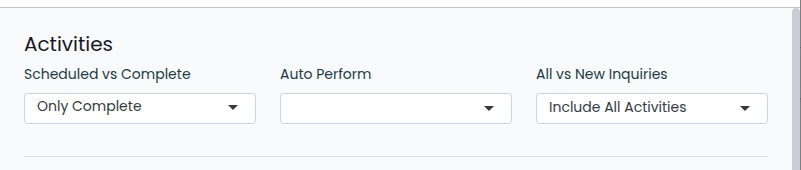
- Lead Source Analysis will now support the same activity filters as Sales Activity Summary.
- All vs New Inquiry filter: This will filter the data to either report exclusively on those who inquired during the period, or on all activities and stage advances that occurred during the period, regardless of prospects inquiry date. This filter WILL impact conversions so if you want to see conversions for only those that inquired, use the New Inquiry option. If you want to see conversions based on what occurred in the period, regardless of inquiry date, use All.
- Scheduled vs Complete: This will allow you to see activities that are completed, scheduled or both.
- Auto Perform: This allows you to apply additional filtering if you want to only see activities that are auto performed or manually performed.
-
The default state of filters will match the data you have been seeing on Lead Source Analysis before this update. This means Lead Source Analysis will show all complete activities, advances and conversions regardless of the date of inquiry.
*Note: Reports are now fully customizable and can be edited, formatted, and saved as additional reports within the Standard Reports tab. See the Customized Reports ARTICLE and VIDEO for in-depth instruction. The selected community/communities and date ranges will remain unchanged or "sticky" when you leave and return to the page for all Standard Reports.
*Note: Some reports now include a "Heatmap" dropdown option, which allows you to highlight specific columns that automatically color-code them from either best-to-worst or worst-to-best; green being the best and red being the worst.