
Overview
Location tracking allows your team to verify that referrer and organization activities are completed at the correct physical location. When enabled, users can log their real-time location at the time of activity completion, and the system will compare it to the scheduled address. This will require the user to turn on location sharing on their phone. For an article explaining how to do this, please click here.
Step 1: Enable Location Tracking (Admins Only)
- Go to Global Setup
- Select Activity Types
- Choose the activity type you want to update
- Toggle “Enable Referrer Activity Location Tracking?” to ON
- Save your changes
This setting applies to both referrer and organization activities.
Step 2: Schedule an Activity with a Location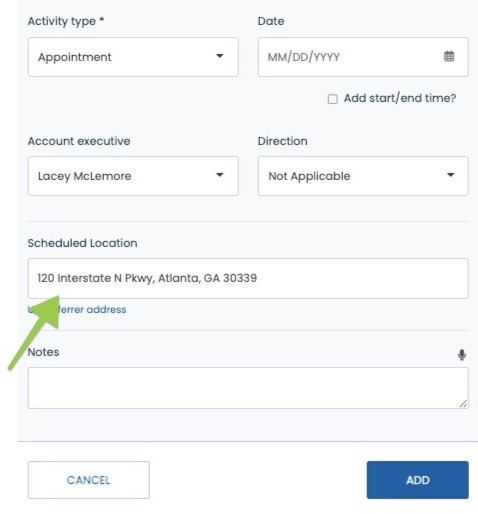
- Create a new referrer or organization activity
- Locate the Scheduled Location field
- Choose one of the following options:
- Use the pre-filled referrer address
- Enter a custom address (auto-complete will assist)
- Click “Use Referrer Address” to revert to the default
- Confirm the address is valid (warnings will appear if it cannot be verified)
- Save the activity
Step 3: Complete the Activity and Log Your Location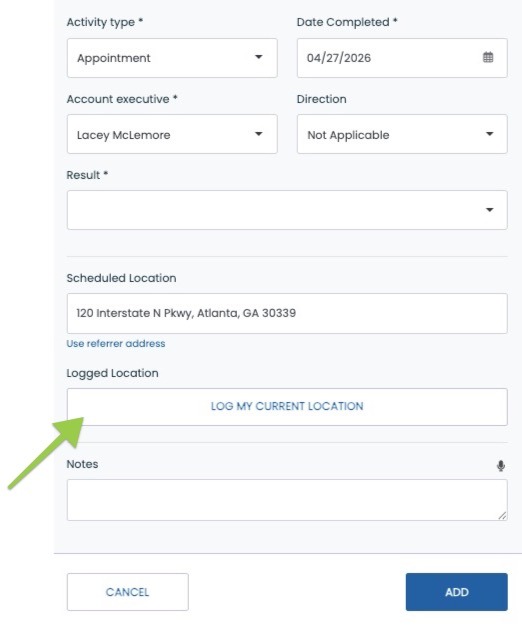
- Open the activity when you are ready to complete it
- Click Complete Activity
- When prompted, select “Log My Current Location”
- Allow location access in your browser when prompted
The system will automatically:
- Capture your current location
- Compare it to the scheduled address
- Assign a status based on proximity
Step 4: Understand Location Status Results
After completing the activity, you’ll see one of the following statuses:
- Near scheduled location – You were within 1 mile of the scheduled address
- Away from scheduled location – You were more than 1 mile away
- No completed location – You skipped location logging
- No scheduled location – No address was set when the activity was created
- Location blocked – Location permissions were denied in your browser
Step 5: View Location Results
- Navigate to the Activities page
- Locate the Completed column
- Review the location status shown for each activity
- If marked “Away from scheduled location,” the logged address will be displayed
- Status indicators follow the same format as other activity results
Tips & Best Practices
- Enable location services on your device before completing activities
- Double-check the scheduled address when creating activities
- Use the referrer’s profile address for consistency when applicable
- Log your location at the time of the visit for the most accurate results
Additional Notes
- This feature applies only to referrer and organization activities
- A 1-mile radius is used to determine proximity
- You can still complete activities if location services are unavailable
- Activities created before enabling this feature will not include location tracking
- Logged locations cannot be edited after completion
By following these steps, your team can ensure more accurate tracking of field activities and improve visibility into rep performance.